Manual: Installing the Postcode Checkout Plugin for Shopware 6
Step 1 – Login to the Postcode Checkout Dashboard
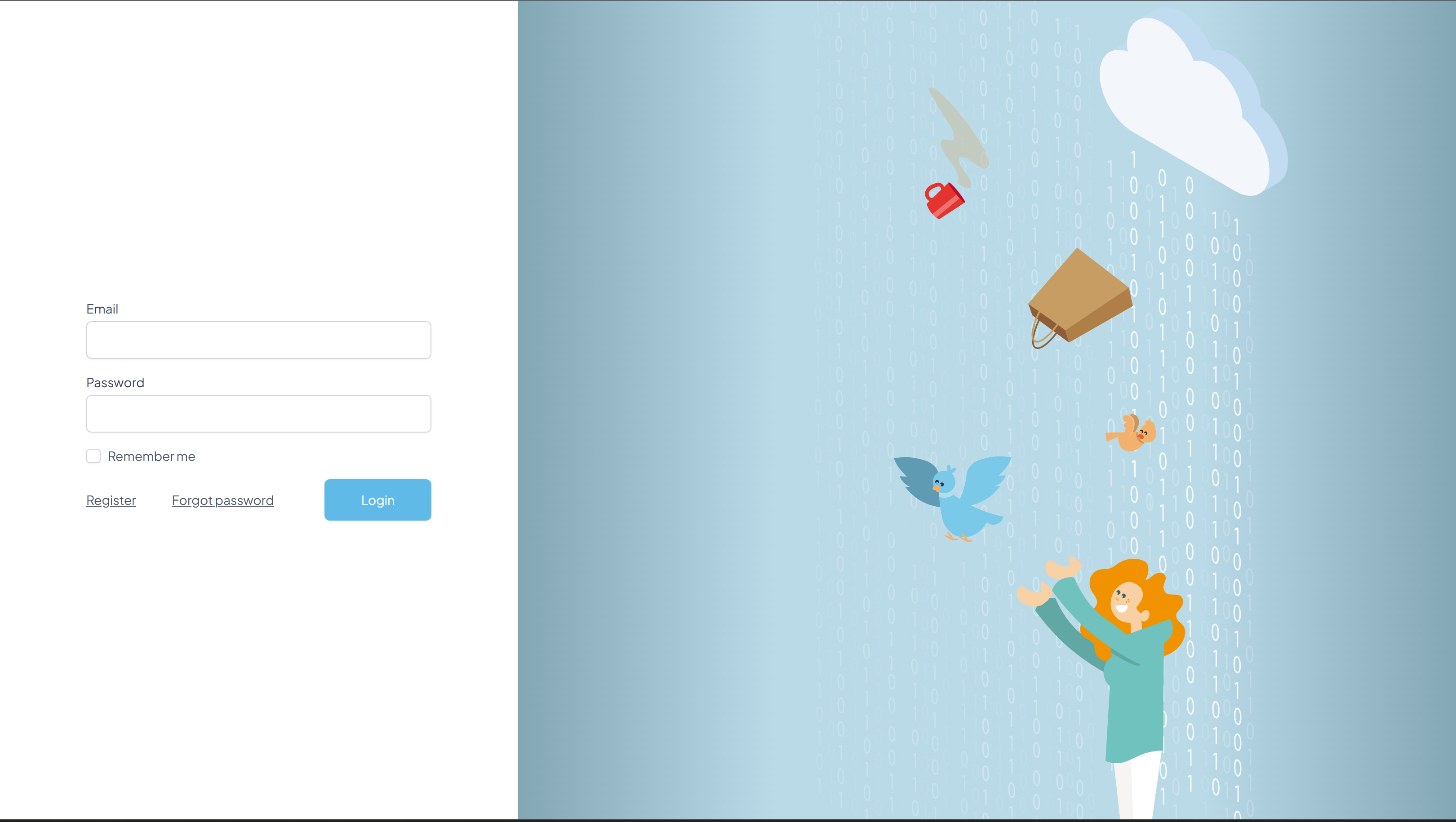
Use your Postcode Checkout credentials to log in.
Stap 2 – Configure Your Shop in the Dashboard

Add your shop domain or verify that it is configured correctly.
Save any changes if necessary.
Stap 3 – Download the Shopware 6 Plugin
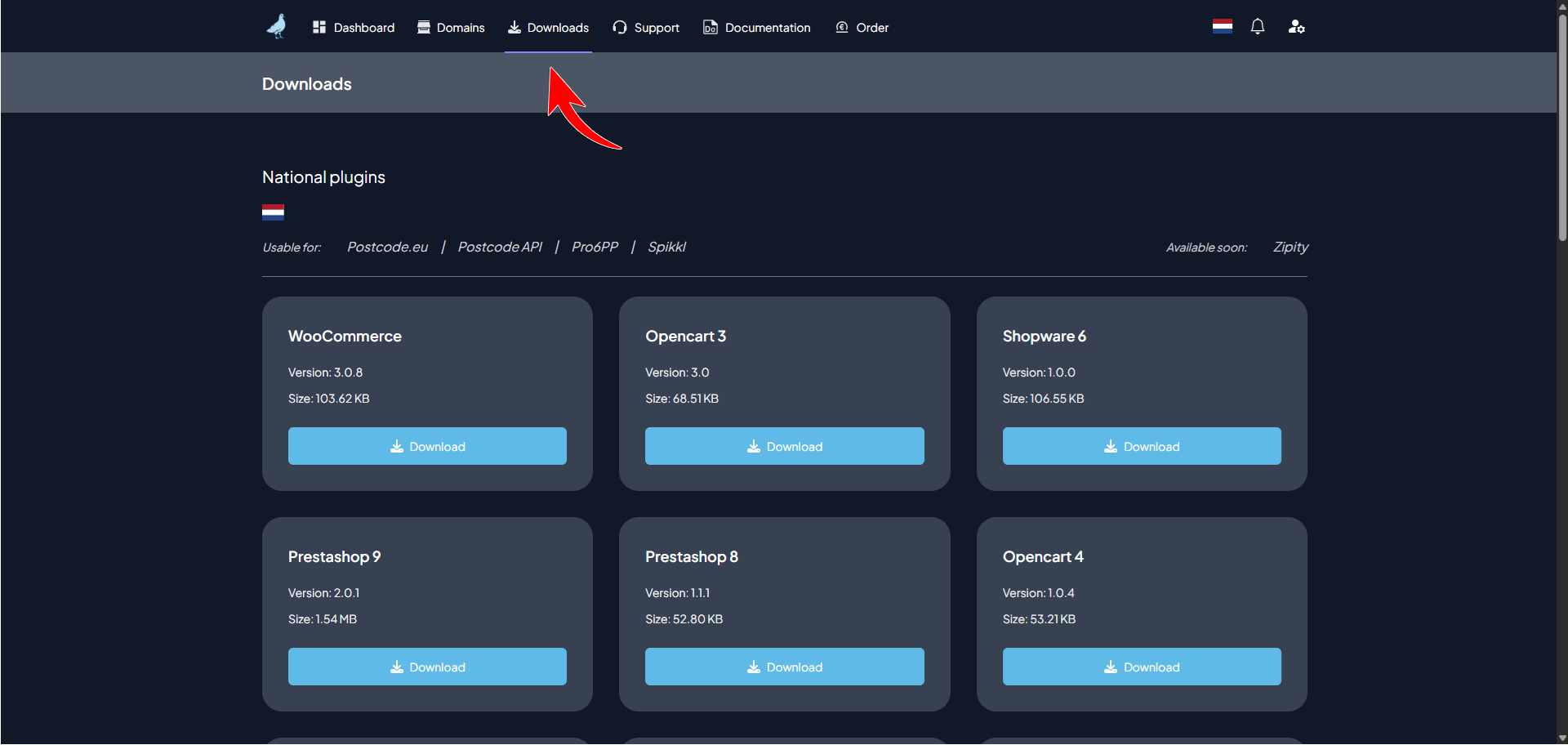
Download the Shopware 6 plugin (ZIP file).
Save the ZIP file to your computer.
Stap 4 – Open Your Shopware Admin
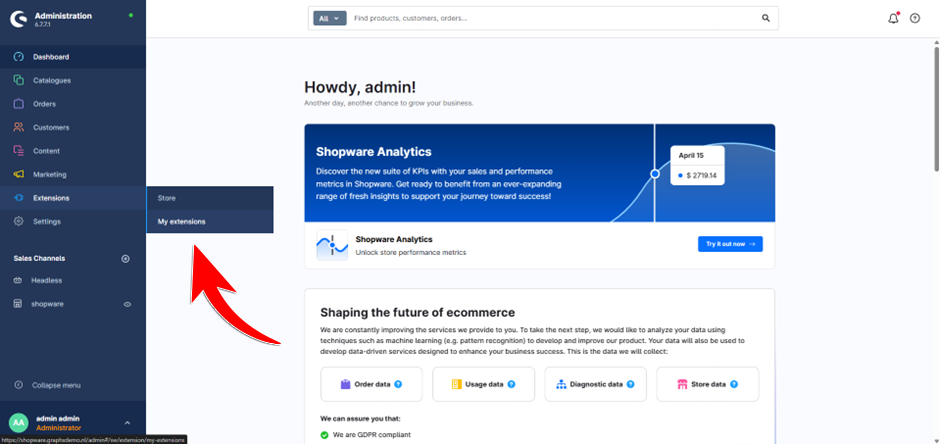
Log in to your Shopware 6 Admin environment.
Hover over:
Extensions (EN)
Extensies (NL)
Erweiterungen (DE)
Then click on:
My Extensions (EN)
Mijn Extensies (NL)
Meine Erweiterungen (DE)
Stap 5 – Upload de plugin
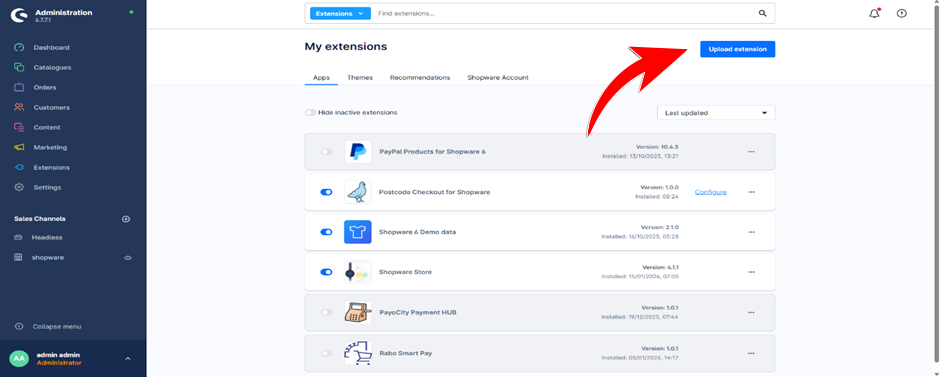
At the top of the page, click:
Upload Extension (EN)
Extensie toevoegen (NL)
Erweiterung hochladen (DE)
Select the ZIP file you downloaded earlier.
Start the upload.
Stap 6 – Install and Configure the Plugin
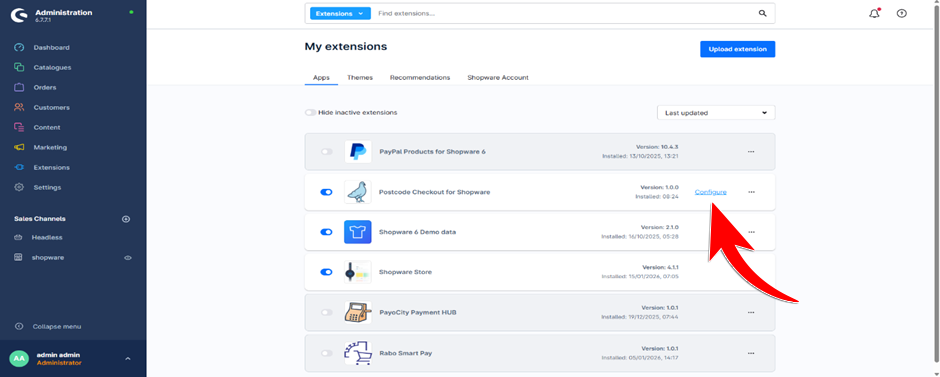
Wait until the installation is complete.
Once the plugin has been installed, click:
Configure (EN)
Configureren (NL)
Konfigurieren (DE)
Stap 7 – Retrieve the Provider
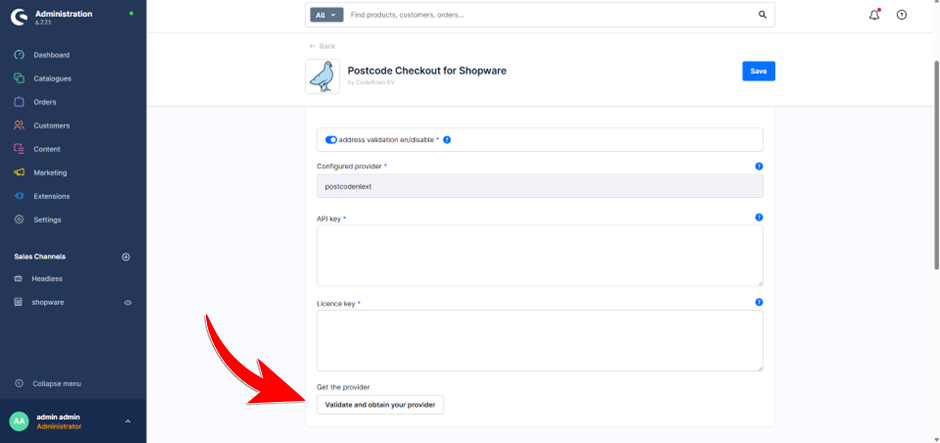
Adjust the plugin settings according to your preferences.
Click:
Provider ophalen (NL)
Configure provider (EN)
Anbieter abrufen (DE)
Verify that the provider loads successfully.
Stap 8 – Save
Click Save.
The installation is now complete.
✔ Verification
Test the plugin by placing an order in your webshop and verify that the postcode functionality works correctly.
X Problems?
If you run into any problems during the installation. Dont panic, we are here to help you.